Builder's Guide · Changes
Build it and apply it to the live app
2 min read ·
When you press Build now, JaMake builds the change as a new version of your app and checks it against what you agreed. Your live app isn’t touched until an app admin applies the new version.
While it builds
- The change waits its turn in the build queue, then shows Building. The estimate on the card says about how many minutes it takes.
- You can leave the page. JaMake tells you on the bell and by e-mail when the build is ready, or when it didn’t pass.
- If the build needs much more than its estimate, JaMake asks: Go on or Stop here.
A build that doesn’t pass is charged nothing, and the change goes back to your list.
Look at what was built
When the build passes, the chat shows Version 4 is ready (with your version’s number) and its checks:
- Builds and opens without errors
- whether all the checks of the summary pass
- how the result compares with the mockup
- Also changed — anything outside the mockup, and why
- anything the change would remove
Press Checks and logs to see every check. In the Mockup tab, switch to As built to see pictures of the pages as they were built.
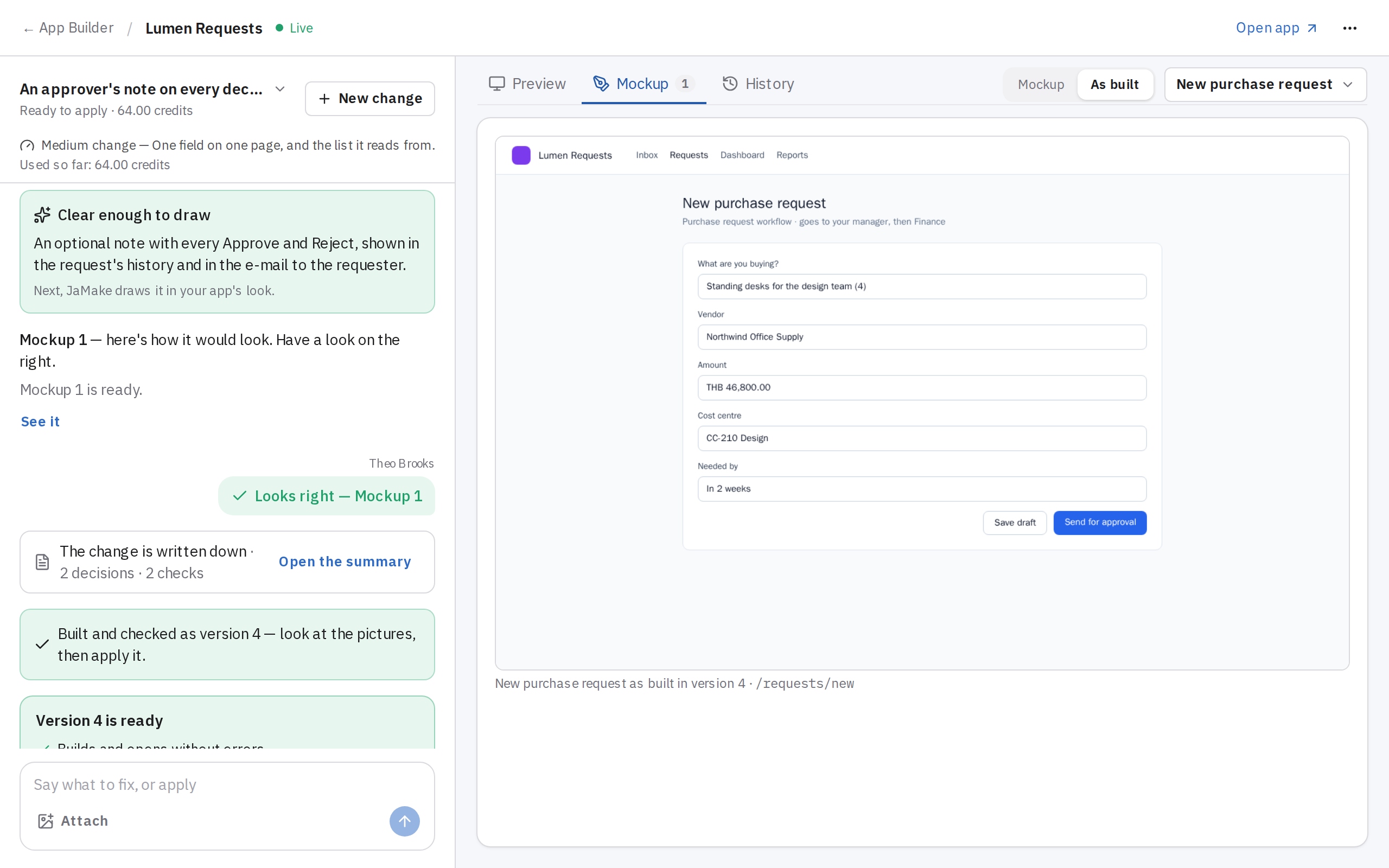
Not right? Write what to fix in the chat, and the change goes back to talk.
Apply it
- An app admin presses Apply to the live app.
- JaMake says which version goes live and that the live data is backed up first. If the backup can’t be made, nothing is applied.
- Press Back up and apply.
JaMake backs up the data, updates the database, starts the new version beside the old one, and switches over: Version 4 is live. People keep using the current version until the switch. Applying costs no credits — the build is already paid for.
If the change removes data, JaMake says This removes data for good. Tick that you understand, and the button becomes Remove it and apply.
Tip: Changed your mind after applying? An app admin can go back to the earlier version — see Versions and going back.
Next: Versions and going back.
Was this helpful?
Thank you — it helps us improve the guide.