Builder's Guide · Getting started
Create your first app
2 min read ·
Every app starts from a template. You pick one in the App store, give the app a name, and JaMake sets it up and puts it live at its own address — with sample data, so you can try it straight away.
Pick a template
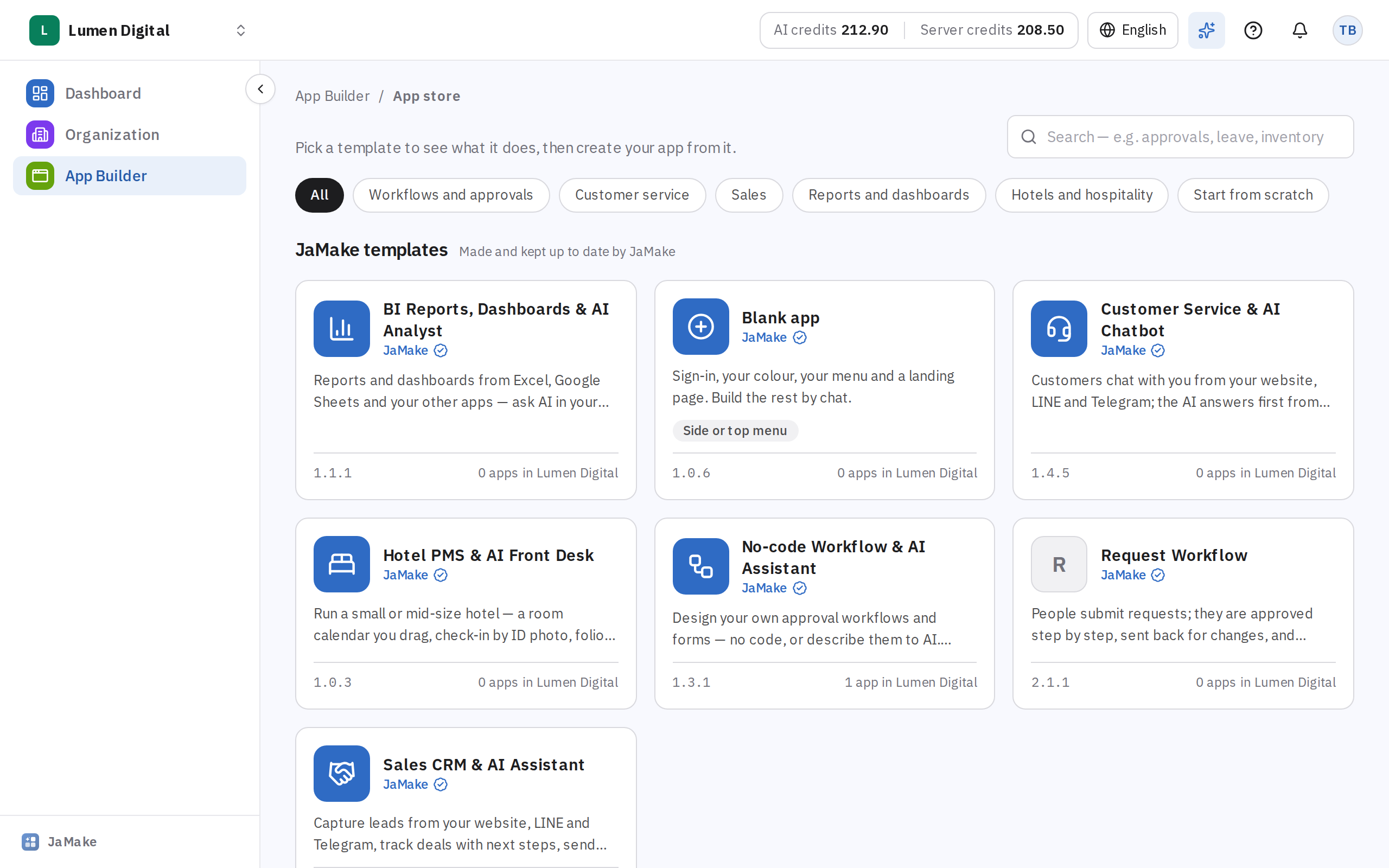
- Press New app on the Dashboard, or open App Builder and press the New app card. The App store opens.
- Look through JaMake templates, or use Search templates and Categories.
- Press See it on a template to open its page.
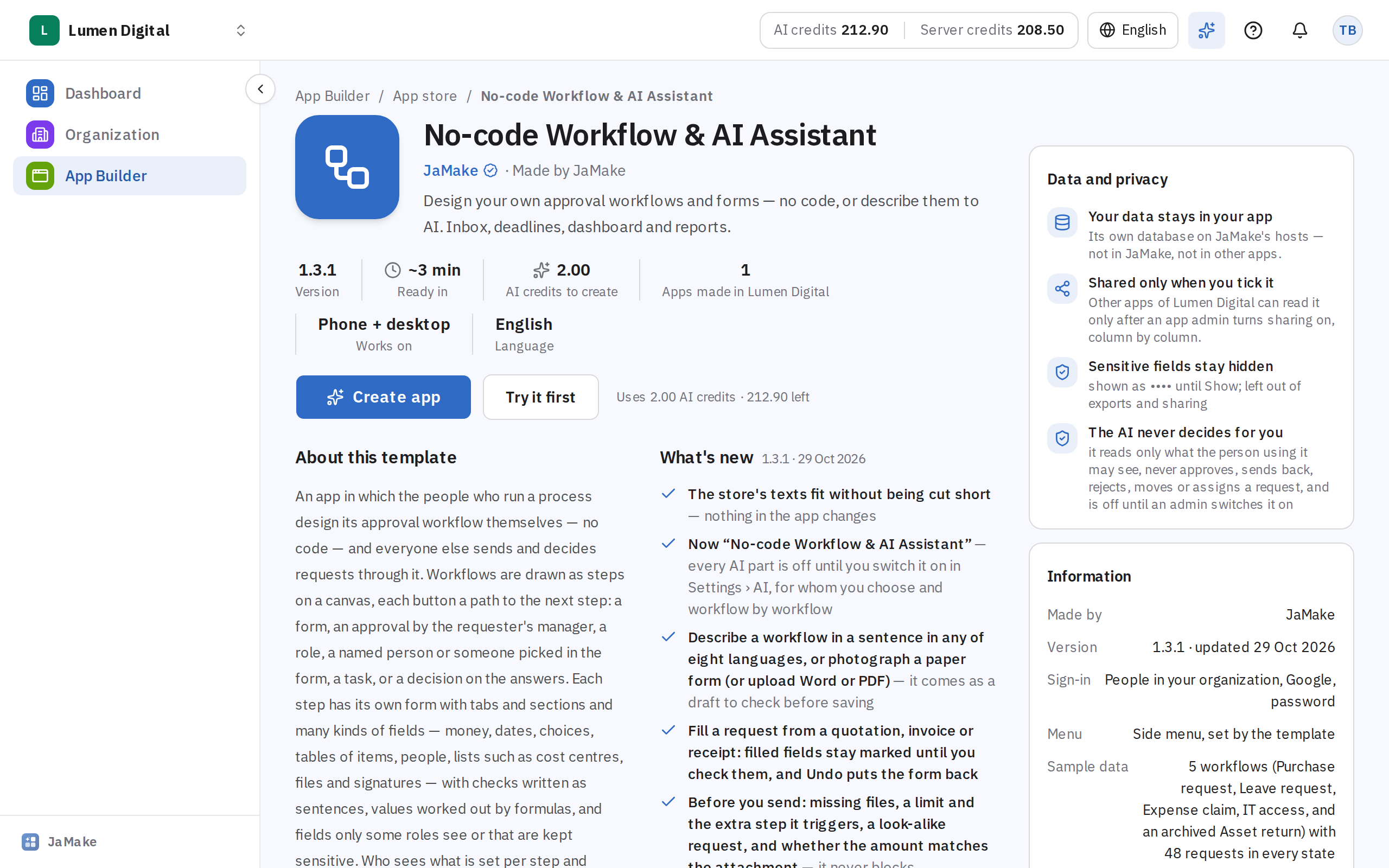
A template’s page shows its pictures, About this template, and how long it takes to be ready, the AI credits to create and whether it has Sample data. Try it first opens a live demo you can click through.
Create the app
- On the template’s page, press Create app. A panel opens.
- Type the App name. Under it you see the app’s address, made from the name and your organization’s.
- Pick a Colour, or press Upload logo. Where the template lets you, pick a Side or Top menu.
- Under How people sign in, tick how the people who use the app will sign in. See How your app’s users sign in.
- Leave Start with sample data on to try the app with made-up records, or turn it off to start empty.
- Press Create app.
Creating an app takes 20 AI credits. JaMake opens the app’s screen while it sets the app up — it says about how many minutes it needs.
Open your app
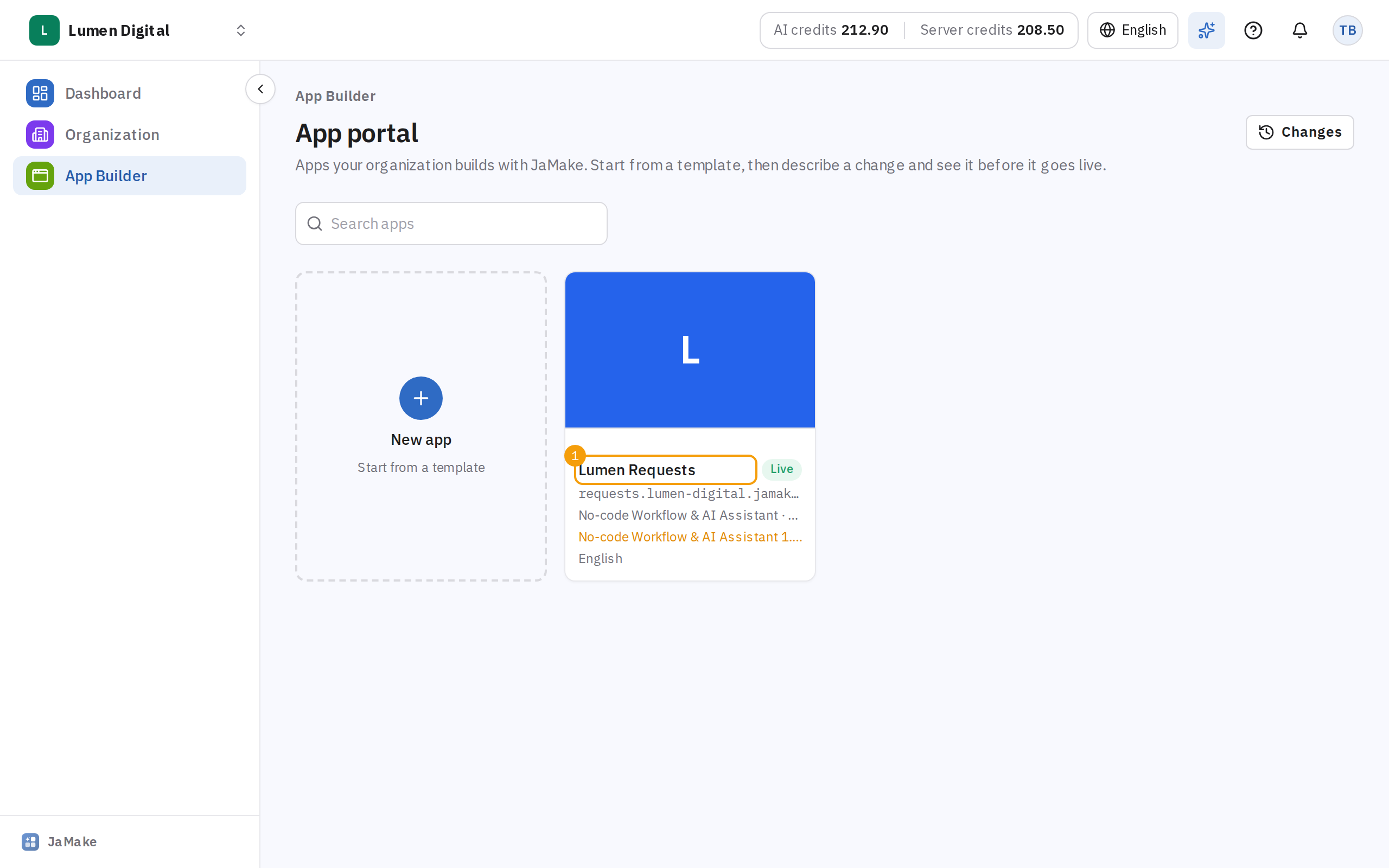
When it is ready, press Open app: your app opens in a new tab, at its own address. In App Builder the app’s card shows its address and Live.
The sample data is marked with This app has sample data. When you are ready to use the app for real, press Clear sample data — JaMake backs the data up first, then empties it.
Tip: You can’t download an app’s code. JaMake keeps it, runs it and updates it for you; your data can be exported from inside the app.
Was this helpful?
Thank you — it helps us improve the guide.