Builder's Guide · Changes
See it before it is built
2 min read ·
Before anything is built, JaMake shows you the change. It draws the pages in your app’s colours and menu, and when you agree, it writes the change down: what changes, what was decided, and how it will check the result.
Look at the mockup
- When the change is clear, JaMake draws it (“Mockup 1 — here’s how it would look”). Press See it, or open the Mockup tab.
- Use Page to move between the pages the change touches, and Version to compare mockups. Where JaMake drew a phone view, you can switch to it.
- A change to words, colours or order shows the page as it is, with the change marked Now and After.
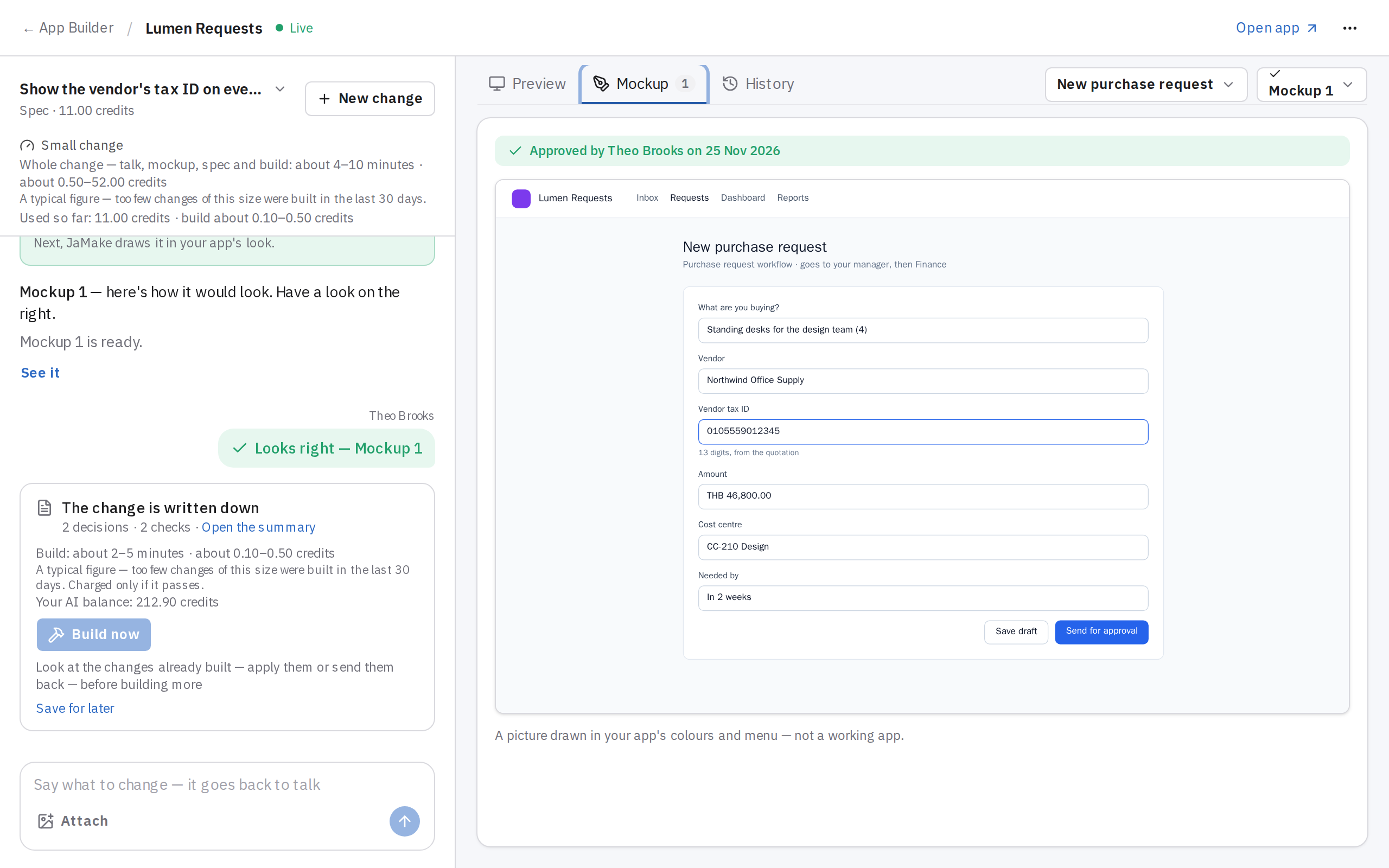
The mockup is a picture drawn in your app’s look — not a working app, so you can’t click through it.
Ask for changes
- Press Change something, draw boxes or click to drop pins on the mockup, add your notes, and press Draw it. JaMake draws the next mockup.
- Or just write in the chat what should be different.
Approve it
- Press Looks right. JaMake writes the change down.
- The card The change is written down appears in the chat. Press Open the summary to read What changes, Decided and How we check it after the build.
- The card also shows about how long the build takes and how many credits it uses, and your AI balance. The build is charged only if it passes.
- An app admin presses Build now — or Save for later to build it another time. Anyone else sees that it is ready and waiting for an admin.
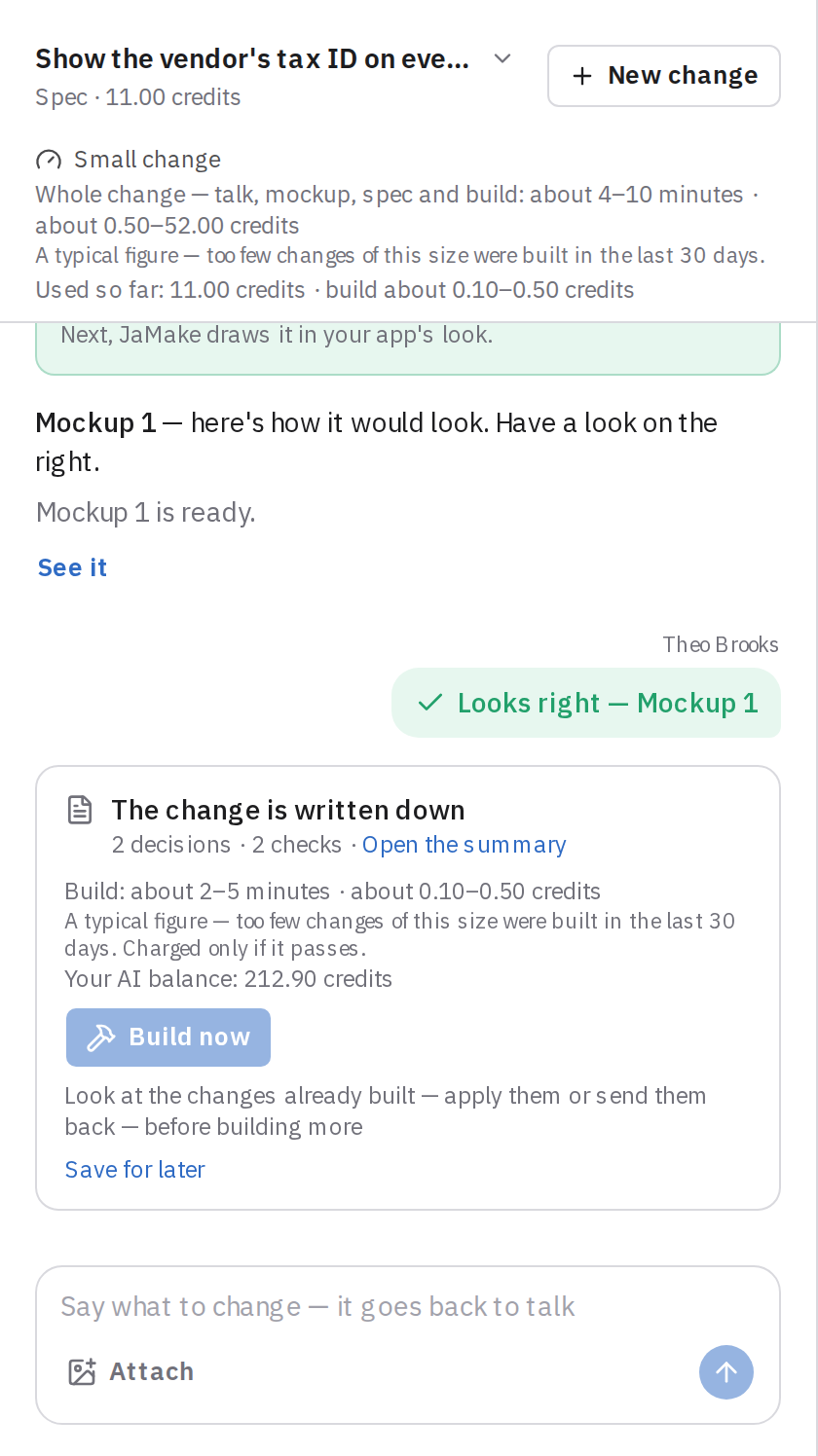
Something to add? Press Back to talk, or write in the chat; the next Looks right writes the change down again.
Tip: Who is an app admin? Each app has its own roles — see Bring your team into the app.
Was this helpful?
Thank you — it helps us improve the guide.