Builder's Guide · Changes
Versions and going back
1 min read ·
JaMake keeps every change your app had, from the day it was made. You can read what each change did, see its mockups and its credits, and go back to an earlier version.
Read the history
- In the Changes screen, open the History tab.
- Find a change in the list, or use Search changes. At the bottom is Version 1 — the app as it was made.
- Pick a change to see What changed, its Mockups, Pictures, Spec and Credits, or press Open the conversation.
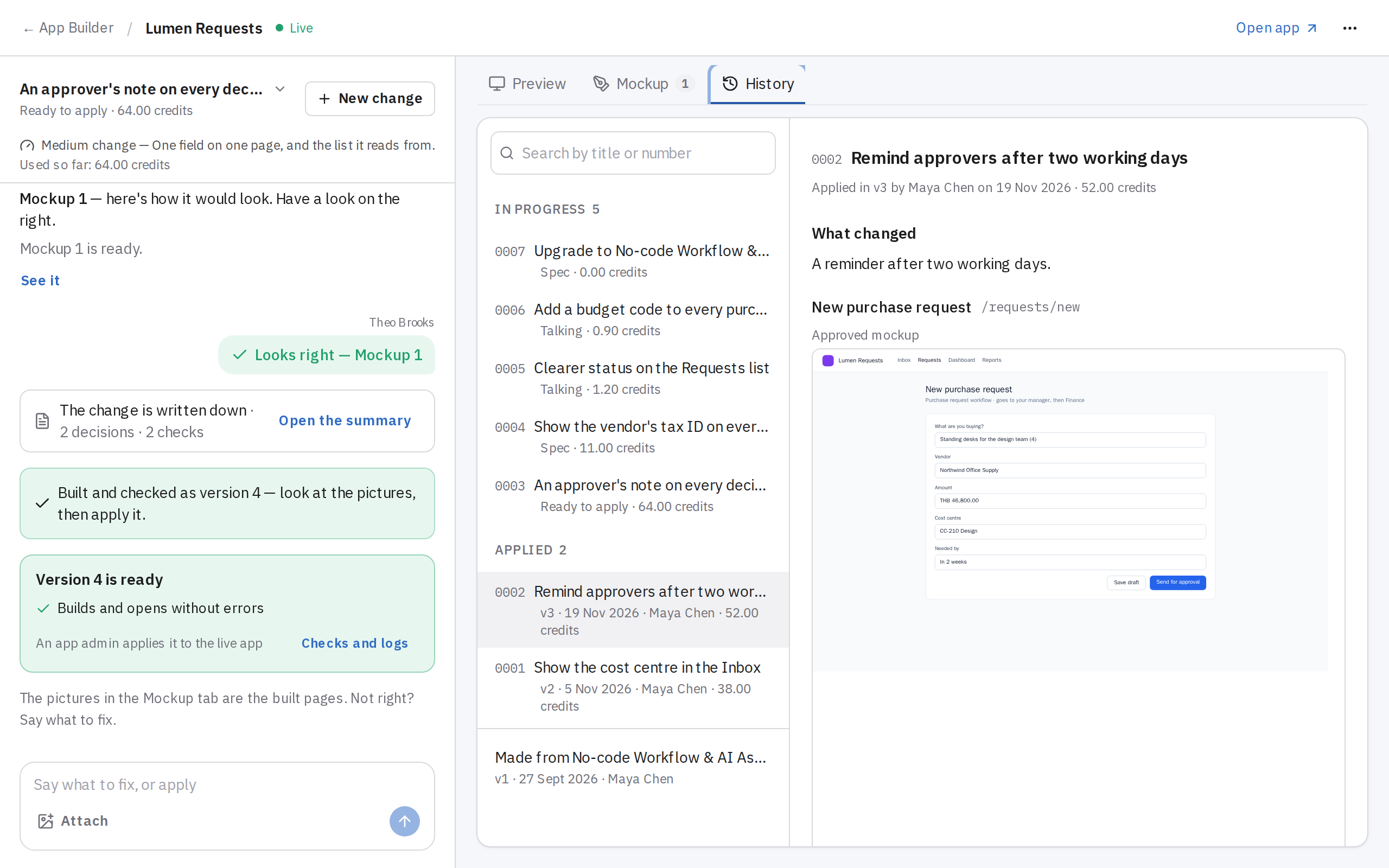
History is kept for as long as the app exists, and nothing in it can be changed.
See the versions
Open the ⋯ menu and choose Versions. All changes and versions lists each version that went live, the changes it carried, and who applied it and when.
Go back to an earlier version
- In Versions, find the version you want back and press Roll back to v3 (with that version’s number).
- JaMake explains what happens. Read it, then confirm.
- The chat shows “Going back to version 3”, then “Back on version 3”.
Only the code goes back. The data stays as it is now: nothing in the database is undone, and what people added since is kept. Only an app admin can roll back.
Tip: Need data from before a change? JaMake backs up the live data before every Apply. Write to us from Contact and JaMake can put a backup back for you.
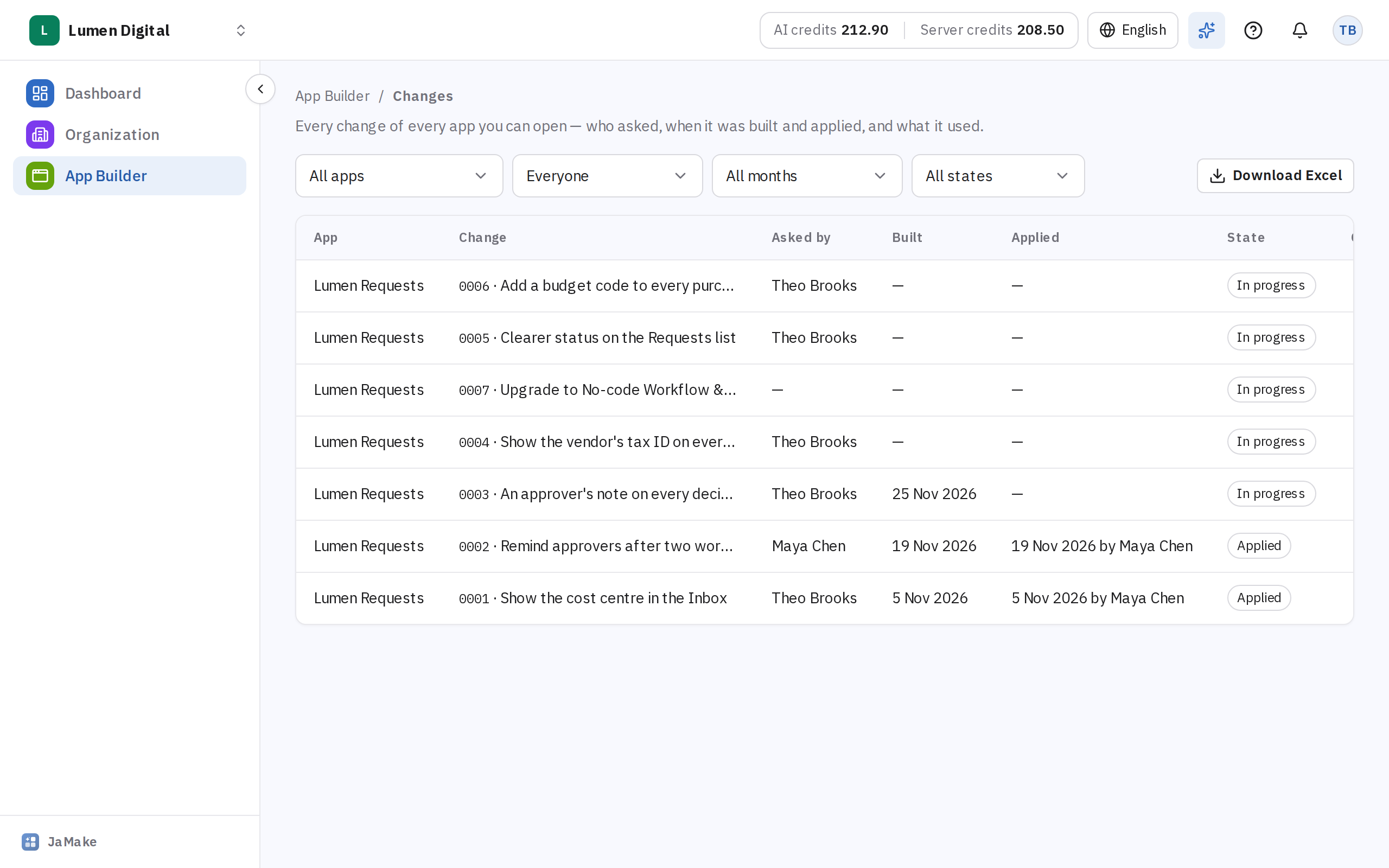
Every change in the organization
App Builder › Changes lists every change in every app, with its state — including Rolled back — and its credits.
Was this helpful?
Thank you — it helps us improve the guide.