Builder's Guide · Changes
Point at the spot with Capture
1 min read ·
Some changes are easier to show than to describe. With Capture you draw a box around a spot in your live app, write what should change there, and send the picture to the chat.
Capture a spot
- In the Changes screen, open the Preview tab. It shows your live app, signed in as you.
- Go to the page you mean — click through the app as usual.
- Press Capture. The page dims, and JaMake says “Drag a box around what you mean, then say what to change”.
- Drag a box around the spot. JaMake takes the picture of the page as you see it.
- In the box’s note, type what should change (“What should change here?”).
- Add more boxes if you need — up to eight. Press × on a box to take it away, or Cancel to drop the capture.
- Press Add to chat. The capture waits in the message box.
- Add any words you like, then press Send.
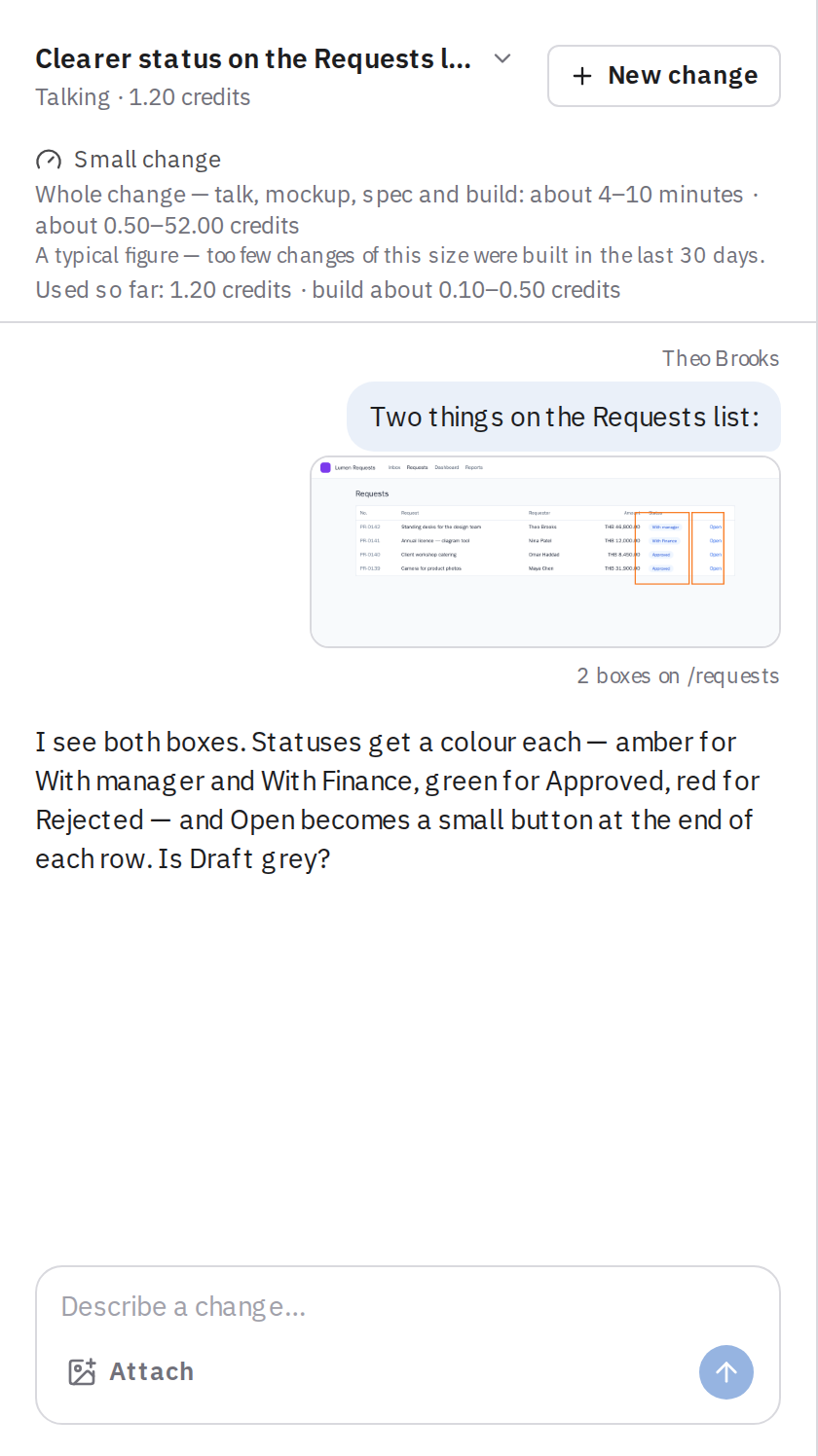
JaMake reads the picture and your notes like any other message, and asks what it still needs to know. You can capture for a new change, or for the change that is open — while you talk, look at the mockup or review it.
Good to know
- Capture works on your live app. Before the app’s first version is live, Preview tells you so.
- It captures pages your app has now. For a page the change will add, describe it in words.
- Capture itself uses no credits; JaMake’s reply to it uses AI credits like any other.
Tip: One box per thing you want changed, each with its own note, keeps JaMake’s questions short.
Next: See it before it is built.
Was this helpful?
Thank you — it helps us improve the guide.