Builder's Guide · Your app
Your app's name, colour, logo and languages
2 min read ·
Your app’s colour, logo and menu are chosen when you create it. Its name, description and the logo JaMake shows for it are in App settings. Anything else about the look — a new colour, a font, another language — is a change you describe in your own words.
When you create the app
In the Create app panel you set the App name, a Colour (or Upload logo), and — where the template lets you — a Side or Top menu. See Create your first app.
Rename it in App settings
- In the app’s Changes screen, open the ⋯ menu and choose App settings. The Details tab opens.
- Click the Name or the Description to edit it. Press Enter, or click elsewhere, to save.
- Under Logo, press Upload logo (or Replace logo) to set the logo JaMake shows for the app. PNG, JPEG, GIF, WebP or AVIF.
- Under Picture on the App portal, press Upload, or Use the latest picture of the app.
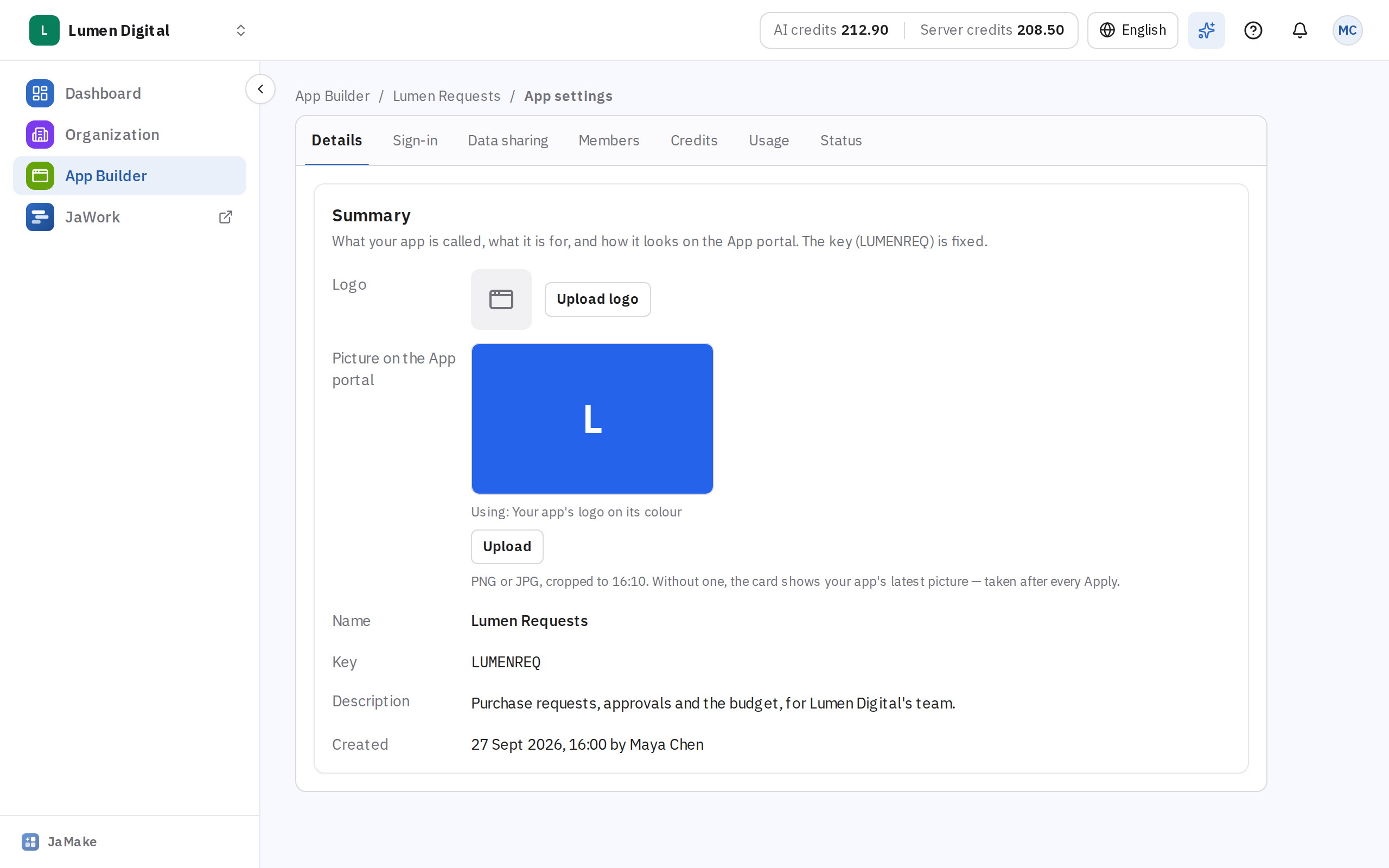
The Key is fixed, and the app’s address doesn’t change here. Only the app’s admins can edit these.
Change the look or the languages
To change the colour, the logo inside the app, the menu, a font or the languages after the app is made, describe it as a change — for example, “Use our dark green as the main colour” or “Add Thai and Japanese”. JaMake draws it, and you see it before it goes live. See Describe a change in your own words.
Which languages a new app speaks comes from its template; the template’s page in the App store lists them.
Tip: For a new logo inside the app, press Attach in the chat and add the picture to your change.
Next: How your app’s users sign in.
Was this helpful?
Thank you — it helps us improve the guide.