Builder's Guide · Your app
Bring your team into the app
2 min read ·
Two kinds of people come into an app: the people who build it with you in JaMake, and the people who use it. You add the first in App settings, and invite the second from inside the app.
People who build the app with you
Each app has its own members and roles in JaMake:
- Admin — builds and applies changes, rolls back, and edits the app’s settings.
- Member — talks with JaMake, draws and approves changes, but doesn’t build or apply them.
- Viewer — reads only.
The person who creates an app is its admin.
- In the app’s Changes screen, open the ⋯ menu and choose App settings, then the Members tab.
- Press Add Member. You see everyone in your organization who uses JaMake and isn’t on the app yet.
- Find people by Name or email, choose their Permission role, and press Add member.
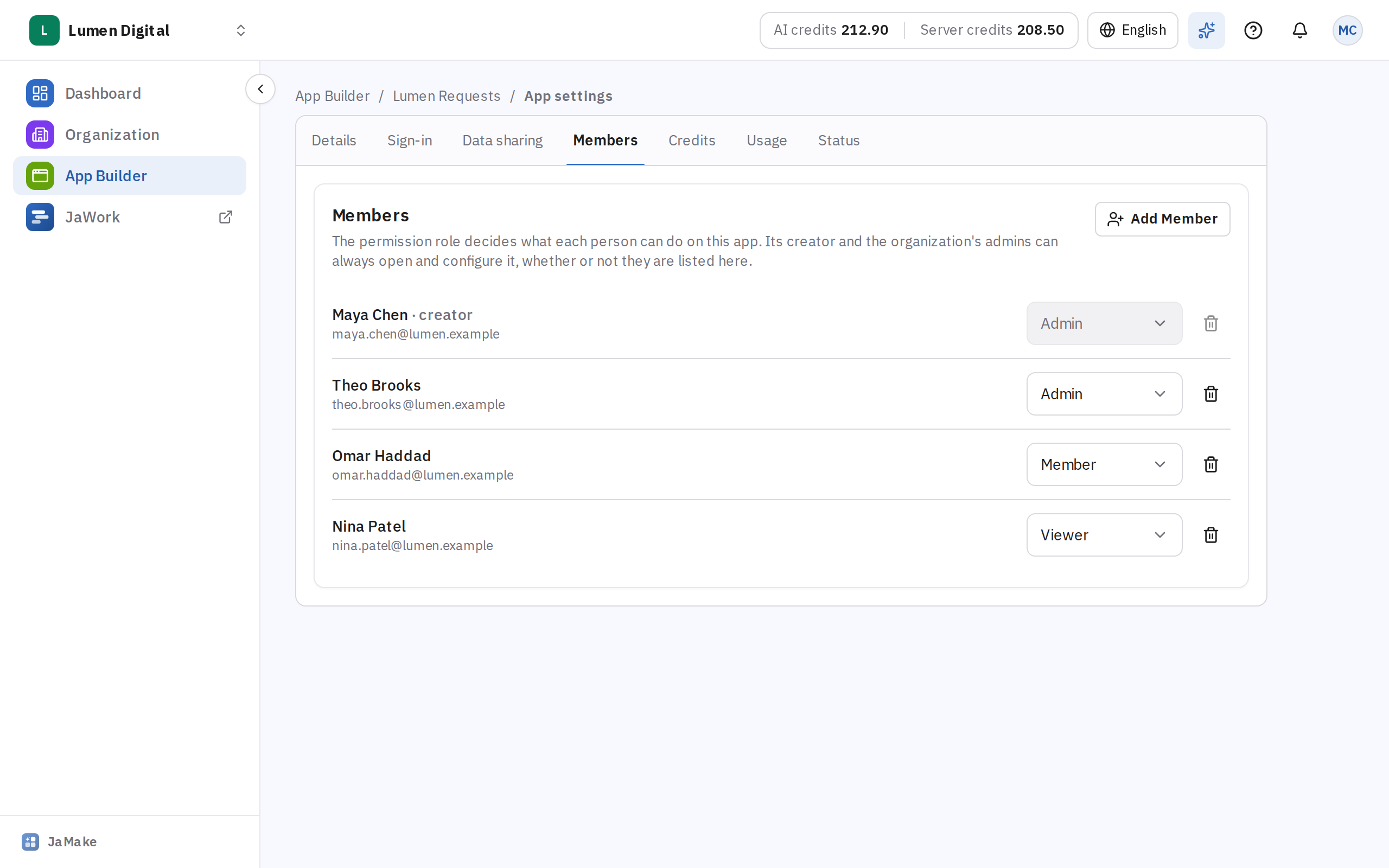
They are added straight away — there is no invitation to accept. To change someone’s role, pick another in their row; to remove someone, press the bin and confirm.
Someone who isn’t in your organization yet? Ask an organization admin to invite them first — see Members and roles.
People who use the app
Who can open the app depends on how its users sign in:
- With People in your organization, everyone in your organization can sign in — no invitation needed.
- Otherwise, the app’s admins invite people from inside the app. In most templates, open the app, go to Admin › Users, press Invite people, type their e-mail addresses, pick a role and press Send invitations. People join from the e-mail.
Tip: The people who use your app don’t need JaMake, and they cost nothing extra — JaMake has no seats.
Next: A template’s new version.
Was this helpful?
Thank you — it helps us improve the guide.