Builder's Guide · Your app
How your app's users sign in
1 min read ·
Each app decides how its users sign in. You can turn on one way or several, and change them at any time. Changing them is free and makes no new version.
The three ways
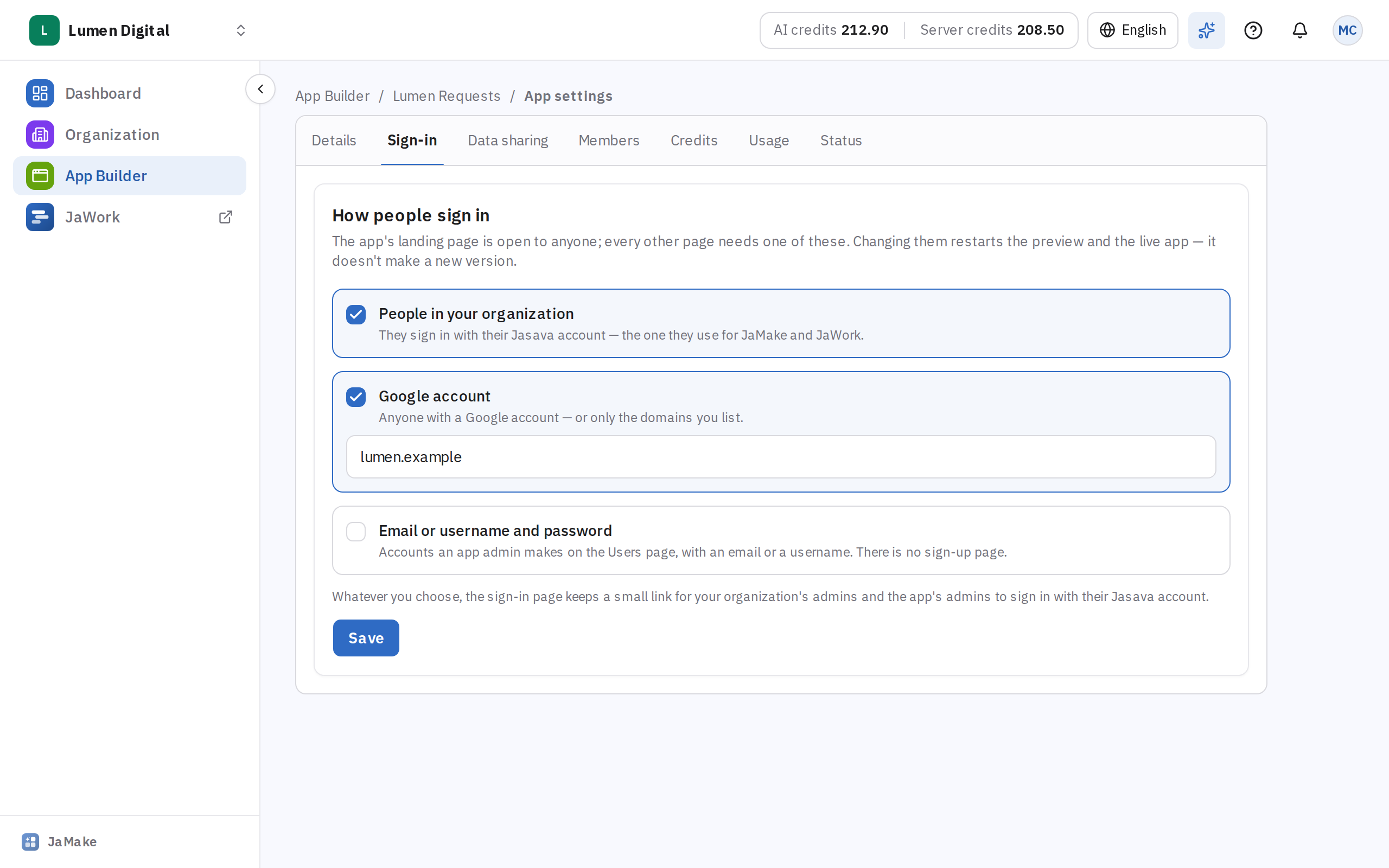
- People in your organization — they sign in with their Jasava account. Everyone in your organization can sign in.
- Google account — anyone with a Google account, or only those on the domains you list (for example
lumen-digital.example). - Email or username and password — accounts your app’s admins make for each person in the app. There is no sign-up page: nobody can make their own account.
Change them
- In the app’s Changes screen, open the ⋯ menu and choose App settings.
- Open the Sign-in tab. The How people sign in card lists the three ways.
- Tick the ways you want — at least one.
- For Google account, leave Google domains empty for any Google account, or list the domains to allow.
- Press Save. The app restarts with the new ways.
Only the app’s admins can change sign-in. You also choose these when you create the app, under How people sign in.
Tip: Whatever you choose, the app’s sign-in page keeps a small link for your organization’s admins and the app’s admins to sign in with their Jasava account — so you can never lock yourself out.
JaMake doesn’t offer Microsoft sign-in or sign-in links by e-mail.
Next: Bring your team into the app.
Was this helpful?
Thank you — it helps us improve the guide.